
Automate Google Sheets with persistent AI agents
Connect Gobii to selected Google Sheets, automate research and updates, use safer write prompts, and manage persistent agents safely through the Agent API.

Connect a Gobii to Google Drive, choose the files it may use, and your worker can read, append, update, format, or chart rows without shuttling data through chat.
Used well, that connection turns a familiar workbook into a shared handoff surface for persistent AI agents, teammates, and downstream systems.
Key Takeaways
- Existing files stay private until you select them.
- Begin with a read-only check before permitting any edit.
- Choose Sheets for living team workflows; choose CSV for a portable, one-time deliverable.
- The Agent API controls a persistent worker's lifecycle, while the Google Drive integration controls external account and file access; neither grants unlimited reach.
In this guide: Connect Sheets · Choose a workflow · Write safer prompts · Use the Agent API · Troubleshoot · Read the FAQ
What Is Google Sheets Automation With AI Agents?
Google Sheets automation with an AI agent assigns workbook operations to a persistent worker that can interpret a goal, use approved tools, and return as the job evolves. Unlike a cell formula or fixed trigger, it can research missing context, reconcile several tabs, explain uncertainty, and report exactly what changed. Gobii's Google Sheets guide covers worksheet names, ranges, formulas, values, appends, formatting, and charts. Results remain in a team artifact instead of disappearing into an isolated conversation. A shared ledger also creates a useful boundary between collection and judgment: people contribute notes, the worker populates defined fields, and a reviewer inspects provenance before anything enters a CRM. One-click integrations for AI agents describes the broader model. Connections supply reach; charters and current instructions supply purpose.
How Do You Connect Google Sheets to a Gobii Agent?
Start by authorizing Google Drive, then grant the relevant existing files. Those are separate choices. An account connection alone does not reveal every document. When we built this flow, we kept selection explicit so the working set remains visible before shared data is touched.
- Open the Gobii responsible for the job.
- Choose Settings, then Integrations & MCP. A just-in-time link from chat can take you there too.
- Select Add Apps, find Google Drive, and choose Connect.
- Complete Google's authorization screen.
- Back in Manage integrations, use Select Files to grant the relevant workbooks. Skip selection only when the assignment is to create a new one.
- Return to chat with a narrow test: "List the tabs and column headers in the selected Q2 sales tracker. Do not edit anything."
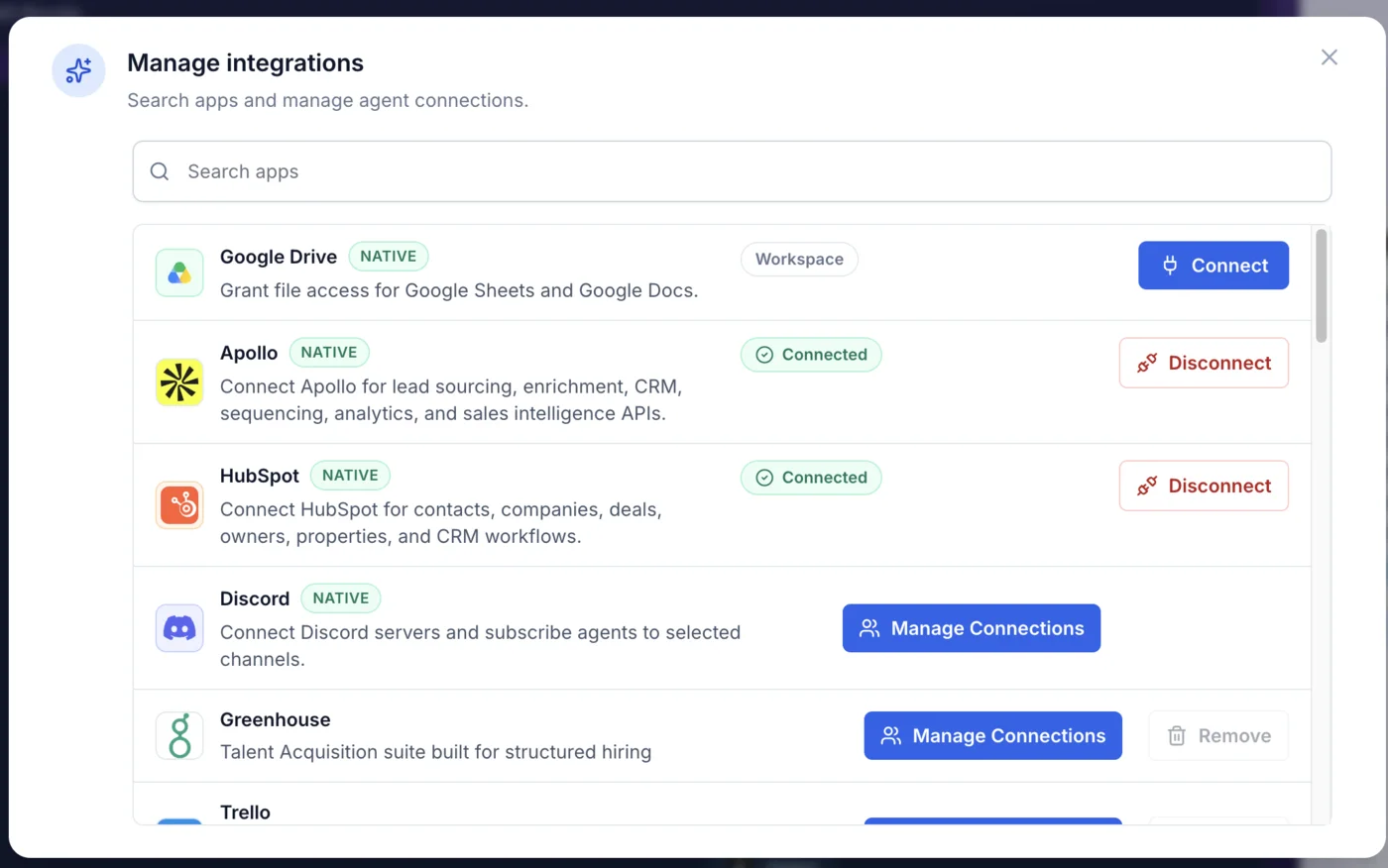
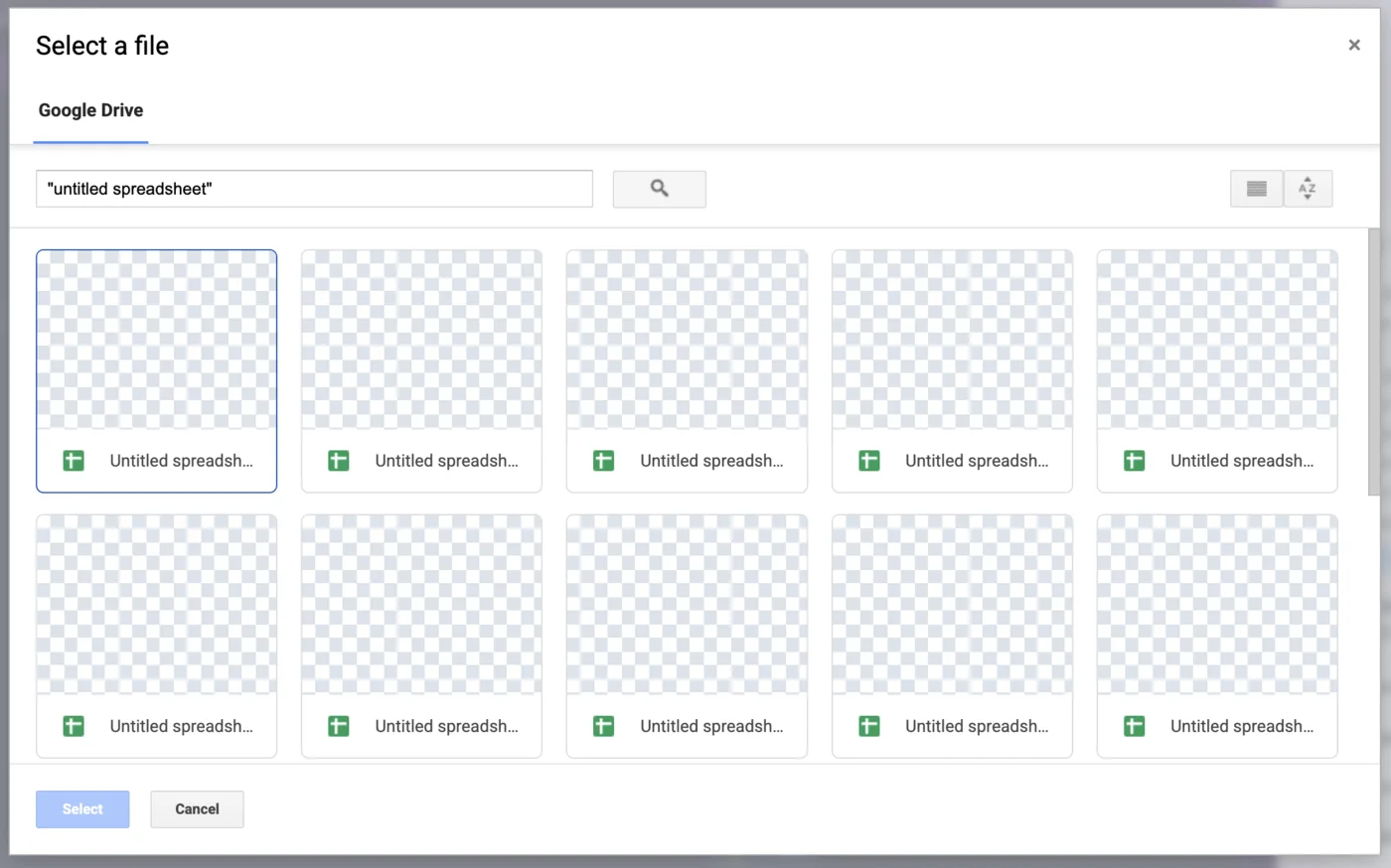
That first inspection validates the account, grant, assignment, and worksheet identity together. The Connect Apps documentation also recommends checking the timeline for tool activity or pending requests. Only then should edits begin.
What Can a Gobii Agent Do in Google Sheets?
Connected workers support both ad hoc edits and scheduled operations, so begin with output that is easy to audit.
| Workflow | Capability | Low-risk opening request |
|---|---|---|
| Lead enrichment | Create or append sourced records | "Draft five rows with citations. Show the proposed columns first." |
| Pipeline reporting | Summarize stages and build a chart | "Count rows by stage. Leave the workbook unchanged." |
| Data hygiene | Deduplicate, normalize, or fill known gaps | "Propose duplicate merges for Leads!A1:H200." |
| Recurring operations | Add fresh results on a schedule | "Append only. Report additions, conflicts, and skipped rows." |
| Presentation | Freeze panes, size columns, add banding, or chart a range | "Format a copied tab and describe each adjustment." |
Large workbooks benefit from explicit keys, data types, batches, and ranges. At scale, identifiers matter. The later Sheets Engine update covers performance; this guide owns connection, scoping, and verification.
Choose the Right Spreadsheet Workflow
Use a connected Sheet when colleagues need a living operational surface in Google Workspace. Ask for a new workbook when the desired schema is known but no destination exists. Need a disposable file instead? A CSV in the Gobii filespace avoids an ongoing account link. Wake up to a spreadsheet shows the recurring research-to-CSV pattern, whereas a selected Sheet suits dashboards, trackers, and collaborative cleanup. Existing, complex workbooks need a different opening move: identify the relevant tabs and key columns before the first run. That small preparation makes reconciliation easier to inspect.
How Do You Write Safer Google Sheets Prompts?
Name the workbook, worksheet, range, operation, matching rule, and approval boundary because "clean the sales sheet" leaves the worker to invent consequential details.
Read
Leads!A1:H200in the selected Q2 tracker. Detect duplicate companies by website domain, then show the rows you would merge and the values you would keep before editing. After approval, read back the affected cells and list anything skipped.
Preview consequential changes. Ask for proposed rows before a bulk update, and use a copied tab for the first production-like run.
Constrain the mutation. Prefer appends over replacements, preserve existing presentation unless told otherwise, and require approval for deletion or broad overwrites. Outreach, purchases, and account changes deserve their own explicit boundary.
Verify the result. Read back the target range, count additions, and record conflicts. Gobii's Approvals and Requests guide recommends checking who, what, where, and duration; Tools and Apps recommends the smallest capability set the role needs.
How Does the Agent API Fit With Sheets Automation?
Gobii's Agent API is the agentic API for operating persistent workers from your software. Public endpoints cover creation, updates, schedules, activation, messages, processing status, and timeline retrieval. Authorization remains separate.
Think of the architecture as three controls:
| Layer | Responsibility |
|---|---|
| Agent API | Worker identity, charter, cadence, state, messages, and observability |
| Google Drive integration | OAuth authorization plus the permitted external files |
| Current instruction | Target range, transformation, review point, and verification rule |
Your application might schedule an operations worker, send a message when reporting opens, and inspect the resulting timeline. Once activated, that worker may use an already assigned Sheets capability. Product flows still handle Google authorization; public API calls neither create private connections nor bypass file selection. When another system should initiate the job, compare this lifecycle approach with inbound webhooks for persistent agents. APIs actively manage workers. Webhooks feed events into an established process.
Troubleshooting Common Access and Write Failures
Cannot find the file: reopen Google Drive and select it; an authorized account is not a blanket search grant.
Wrong worksheet: list tab names, then repeat the intended tab and range.
Expired authorization: reconnect, revisit selection, and grant the workbook again if necessary.
Risky result: stop the run, read the affected cells, summarize the delta, and retry against a copy after approval.
Chart or formatting error: names can mislead, so inspect workbook metadata, the internal sheet ID, and the actual chart range; the timeline will reveal whether the root cause was scope, authorization, or instruction quality.
Google Sheets AI Agent FAQ
Can a Gobii agent see every file in my Google Drive?
No. You select the existing spreadsheets a Gobii may access; unselected Drive files remain unavailable, although the worker can create a new spreadsheet when asked.
Can a Gobii agent create and format a new Google Sheet?
Yes. Provide a title, data, columns, and presentation requirements. A Gobii can create the file, add rows, format headers, freeze panes, size columns, and build charts.
How can I reduce the risk of accidental spreadsheet changes?
Name the exact file, tab, and range. Request a preview before bulk edits, prefer appends over replacements, require approval for destructive work, and verify the changed cells afterward.
Does the Agent API replace the Google Sheets connection?
No. The Agent API manages the persistent worker's lifecycle, schedule, messages, status, and timeline; Google authorization and file selection still use Gobii's supported integration flow.
About the author: Will Bonde works across growth and engineering at Gobii, focusing on practical workflows for persistent AI agents.
Connect Google Drive in Gobii, select one low-risk workbook, and begin by listing its tabs without editing anything.